

NIMBO Terrain (Hillshade)
Pre-rendered greyscale relief images for topographic context over continental surfaces. The observed XYZ service delivers 512 × 512 WebP tiles. These rendered images do not contain encoded elevation values.
Terrain-RGB and its derived relief products concern continental surfaces. Exact footprint boundaries and NoData areas have not been confirmed; a continental extent is not proof of a populated tile at every location.
Use in QGIS · Catalogue and service settings
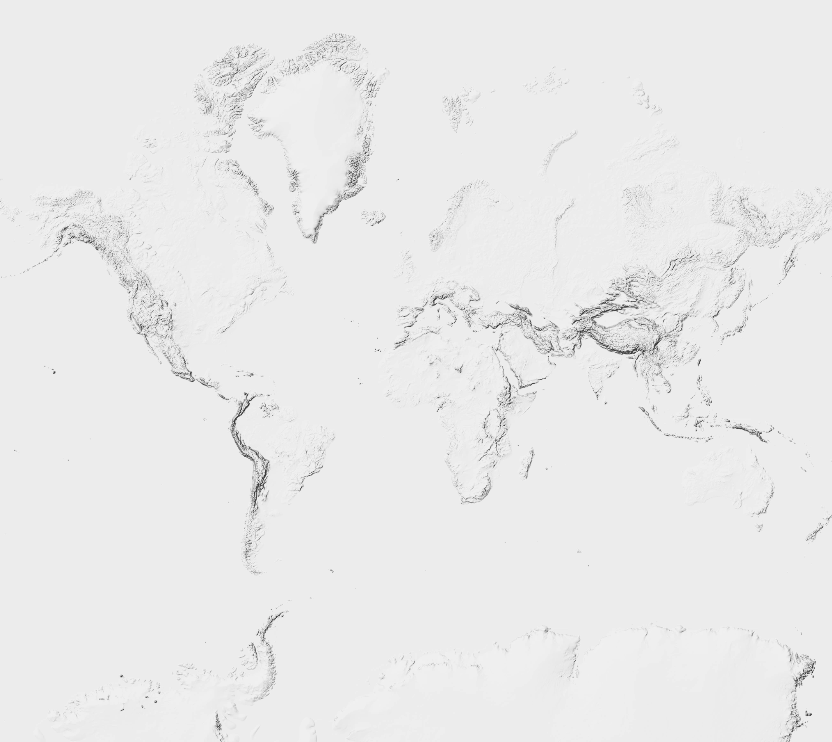
Nimbo Hillshade
Technical Specifications
Section titled “Technical Specifications”| Feature | Details |
|---|---|
| Service URL | https://prod-data.nimbo.earth/tiles/hillshade/{z}/{x}/{y}?kermap_token=<YOUR_TOKEN> |
| Format | WebP (Grayscale) |
| Zoom Levels | 0 to 10 |
| Coordinate System | Web Mercator (EPSG:3857) |
| Coverage | Continental surfaces; exact footprint unconfirmed |
| Tile Size | 512x512 px |
Integration Guide
Section titled “Integration Guide”The Hillshade layer is best utilized with a “Multiply” raster-opacity blending mode. This allows the shadows to darken the underlying map (satellite or vector) while keeping the highlights transparent, creating a natural 3D effect.
MapLibre GL JS / Mapbox GL JS
Section titled “MapLibre GL JS / Mapbox GL JS”Here is how to add the source and layer to your map style:
map.on('load', () => {  // 1. Add the Hillshade Source  map.addSource('nimbo-hillshade-source', {    'type': 'raster',    'tiles': [      'https://prod-data.nimbo.earth/tiles/hillshade/{z}/{x}/{y}?kermap_token=<YOUR_TOKEN>'    ],    'tileSize': 512,    'maxzoom': 10  });
  // 2. Add the Layer with "multiply" blending  map.addLayer({    'id': 'nimbo-hillshade-layer',    'type': 'raster',    'source': 'nimbo-hillshade-source',    'paint': {      'raster-opacity': 0.6,       // Adjust intensity (0.0 - 1.0)      'raster-fade-duration': 0    }    // Note: MapLibre does not support 'raster-blend-mode': 'multiply' natively    // in the style spec yet, but standard opacity often suffices.    // For advanced blending, CSS composition filters on the canvas container    // or specific map renderers may be required.  }, 'your-label-layer-id'); // Insert below labels});
Desktop GIS
Section titled “Desktop GIS”Want to use Nimbo Hillshade for your cartographic projects in QGIS or ArcGIS?
- Tutorial: How to add Hillshade to QGIS Learn how to set up the XYZ layer and apply blending modes for professional rendering.
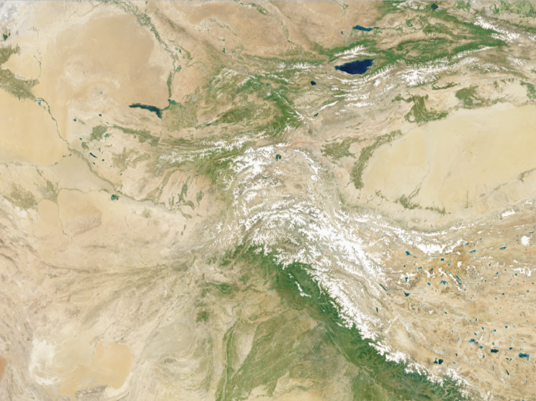
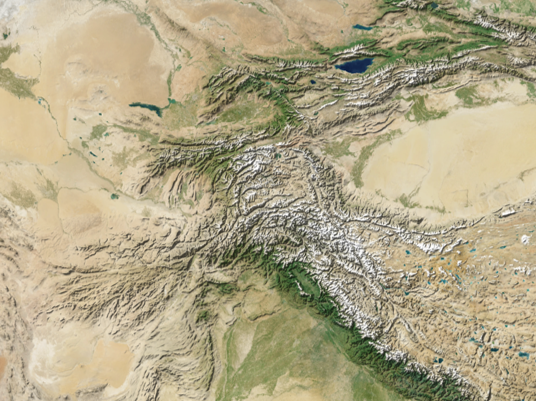
Methodology & Processing
Section titled “Methodology & Processing”Hillshade is a rendered relief image, not encoded elevation values. Its source DEM and calculation settings, including lighting, smoothing and contrast, have not been confirmed.
Access
Section titled “Access”| Layer | Discovery | Pro | Pro HD | Enterprise |
|---|---|---|---|---|
| Pre-rendered hillshade | Evaluation | Included | Included | On agreement |
- Pre-rendered hillshade: XYZ.
Modes listed apply only to the documented combinations. “To confirm” includes missing rules. Evaluation, on-request and agreement conditions, delivery methods and any differences by mode are listed below.
Next Steps
Section titled “Next Steps”- Get an API Key: Start integrating the hillshade into your apps.
- View the Terrain RGB Docs: Read about encoded elevation and its accuracy limits.
- How to add Hillshade to QGIS: Apply blending modes for professional rendering
Service verification
Section titled “Service verification”Checked on 2026-09-30. Non-empty samples were 512 × 512 WebP tiles.
Use the extensionless URL: the tested .webp variant returned HTTP 404.
The Paris requests at zooms 11–12 returned HTTP 204 with no image, so keep the
client source at maxzoom: 10.
TileJSON is available at:
https://prod-data.nimbo.earth/tiles/hillshade?kermap_token=<YOUR_TOKEN>It supplies a tile URL but no zoom limits and echoes the supplied token in that URL. Redact credentials before sharing it. The service metadata does not identify the source DEM, source resolution or an update schedule. See the catalogue record for checked settings.